A little help with your everyday money notes
Live your life.We’ll keep track
of the money.
Turn saved payment slips into useful notes.
Read, organize, and see where your money goes,
one everyday moment at a time.
Your own money journal · Start in your browser
Your MorJot money journalAll sample data
Lots to keep track of?
Let’s take it one note at a time.

Real app screen · Tap to view full size
Less typing from every slip
Read the amount and date, then check the details.
Make it your kind of journal
Choose categories, edit names, or add entries yourself.
Open your journal. See the picture.
Your income, spending, and the categories behind it.
A LITTLE EVERY DAY
From one slip
to a clearer picture.
Four small steps, one journal that makes sense.
Illustration · fictional data only
- 01
Pick a slip
Start with a photo already on your phone.
Sample café · 185 baht - 02
Check the details
Review the amount, date and recipient.
185.00 · 15 Oct 2026 - 03
Give it a category
Keep or change the category to suit your journal.
Food & drinks - 04
See the bigger picture
Find your spending by week or month.
Sample month · 5,480 baht
The animation explains the steps. It does not scan a photo or create an entry.
See how it fits into your day
One journal.
Clearer every day.
These are real MorJot app screens.
Every name, entry, and amount is fictional.
All sample data
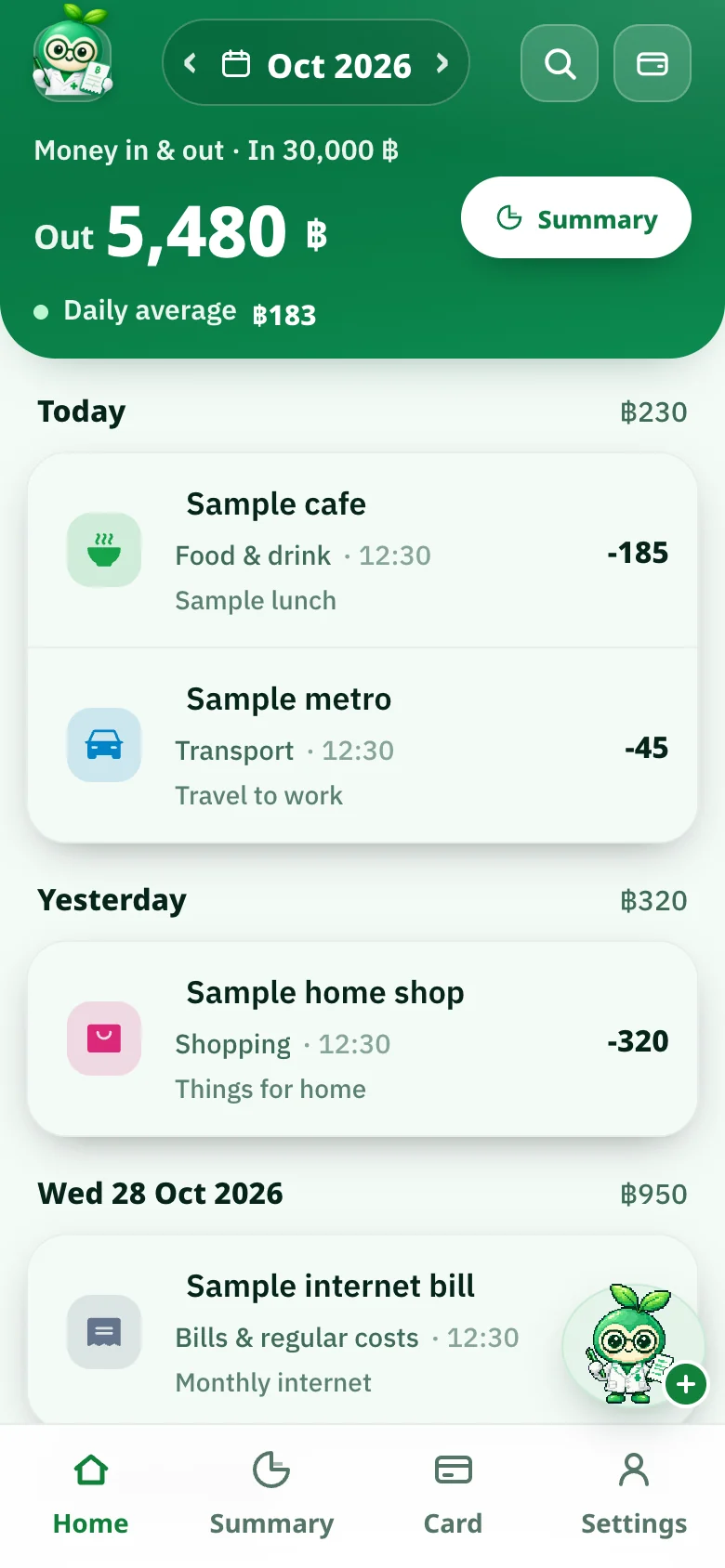
What did you spend today?
See income, spending, and daily entries.
Tap an entry to view or edit it.
View the full home screen Make it your kind of journal
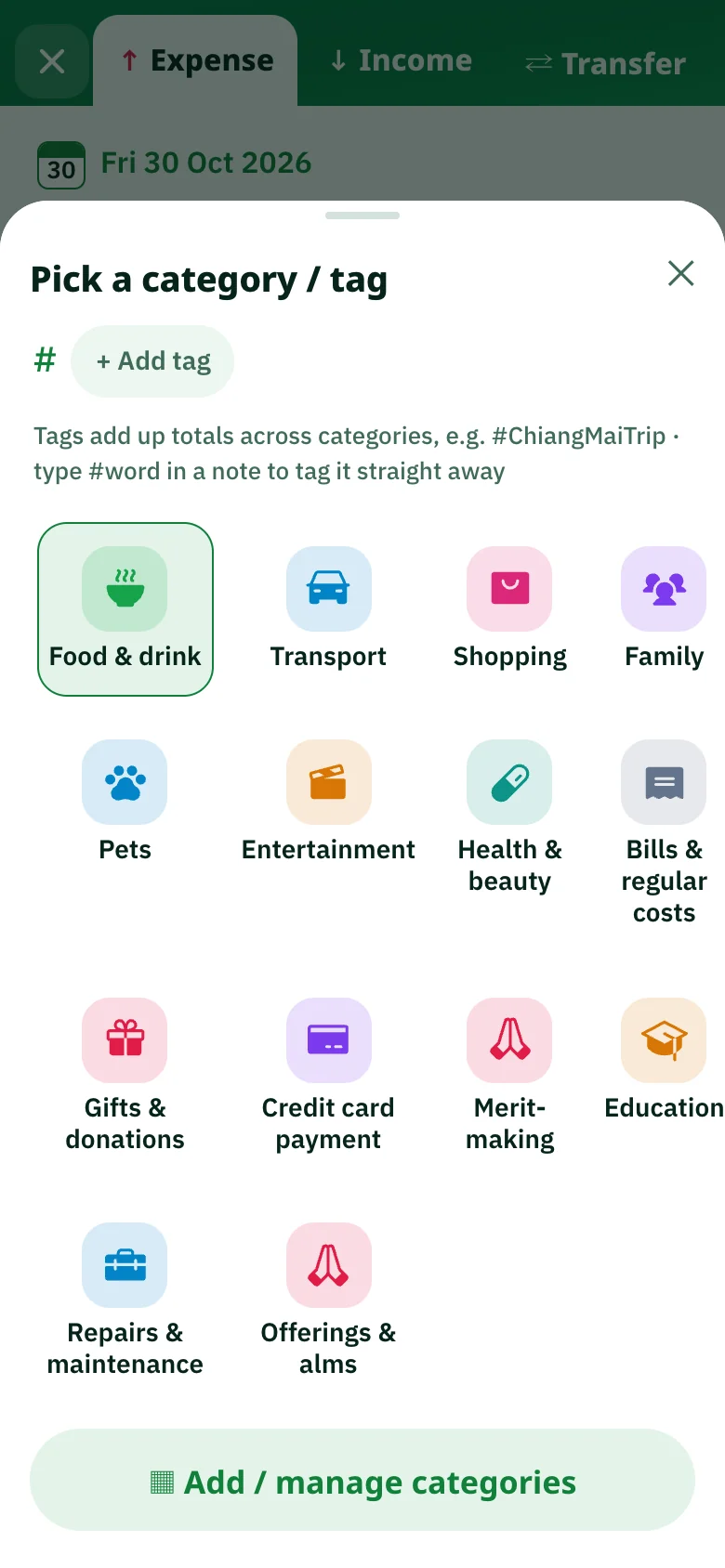
Pick a category with a familiar icon.
Add tags to group related entries.
 View the full category picker
 See where your money goes
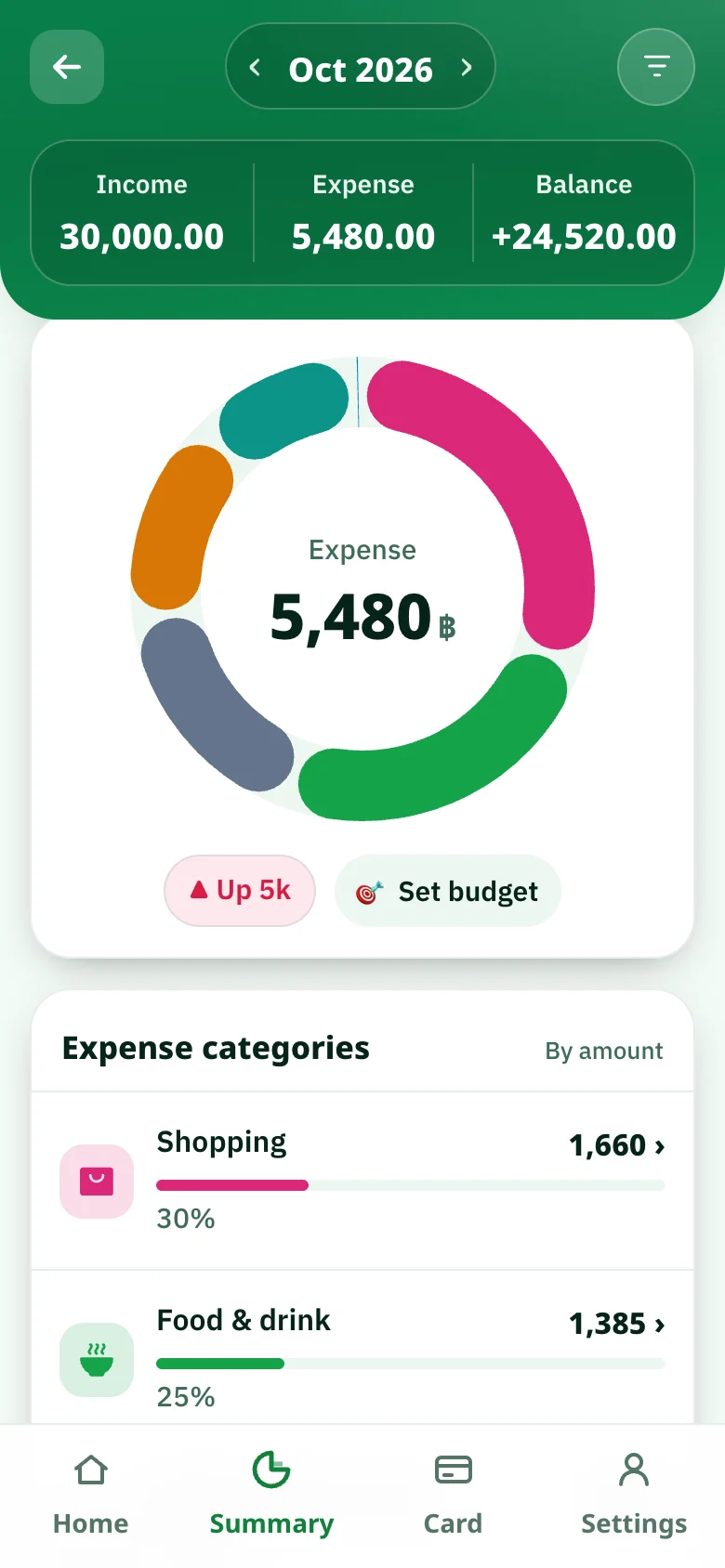
See your spending by category.
Tap a category to explore its entries.
 View the full summary
 Want to try it first?
Start with one slip.
See the bigger picture.
Try reading an amount, changing a category,
and seeing a breakdown with this small demo.
This demo simulates the steps for you to try.
The screenshots above are from the real app.
A saved slip, ready to read
01 / 03Sample shop
185.00baht
An example of reading the amount and date from a slip.
A place for every entry
02 / 03If a category doesn’t quite fit, change it to match the way you keep your journal.
Every entry in this panel is fictional.
See the picture in your notes
03 / 03Sample weekly spending1,250baht
See the share of each category as you plan what’s next.
Your money is personal
Keep notes with confidence.
Know where they live.
MorJot reads slips on your device. You can choose whether to back up slip images to your account in Settings.
Read about privacyStart with the images you choose
Choose just the slips you want to record. The website does not need access to your entire photo library.
Image backup is your choice
Backed-up copies belong to your account. Turn backup off or delete those copies in Settings.
Take your journal to another device
Sign in with the same account to sync entries. You can manage or delete your account yourself.
Before your first entry
A few things to know
Quick answers to questions you might have.
Talk to the MorJot teamDo I need to install an app?
You can start in your browser, including on your phone. Choose “Start on the web” and follow the steps in the app. We’ll share download links for iPhone and Android when they are available.
What permissions are needed?
On the web, you choose which slip images to import. Automatic photo scanning in the mobile app asks for photo permission first. Choose the access your device supports and change it later in device settings.
Where are my slip images stored?
The reader runs on your device, with optional image backup to your account for later viewing. Change your consent or delete backed-up copies in Settings. For details, see our Privacy Policy
What if a slip or category is incorrect?
Review an entry and correct the amount, date, name, or category before saving. You can also edit saved entries. No slip? Add income or spending manually.
Can I move to a new device?
Synced entries return when you sign in to the same account on your new device. If you use Apple sign-in on iPhone and want to move to Android, first link Google in Settings, then use that Google account on Android.
How do I stop using MorJot or delete my data?
In the app, go to Settings → Delete account and all data. Review the details and confirm your choice. You can also read the steps on our Account deletion page
Start with an ordinary day.
Keep the money notes in your journal. Get on with your life.